

Feature · Produce
One setup. A different name on every unit.
Brikl personalization turns a layer you mark editable into a field on the product page — a name, a number, a department. What the shopper enters travels with the line item as data, so each unit’s artwork is generated from its own value rather than transcribed from an email.
Customization and personalization
One is yours. The other is theirs.
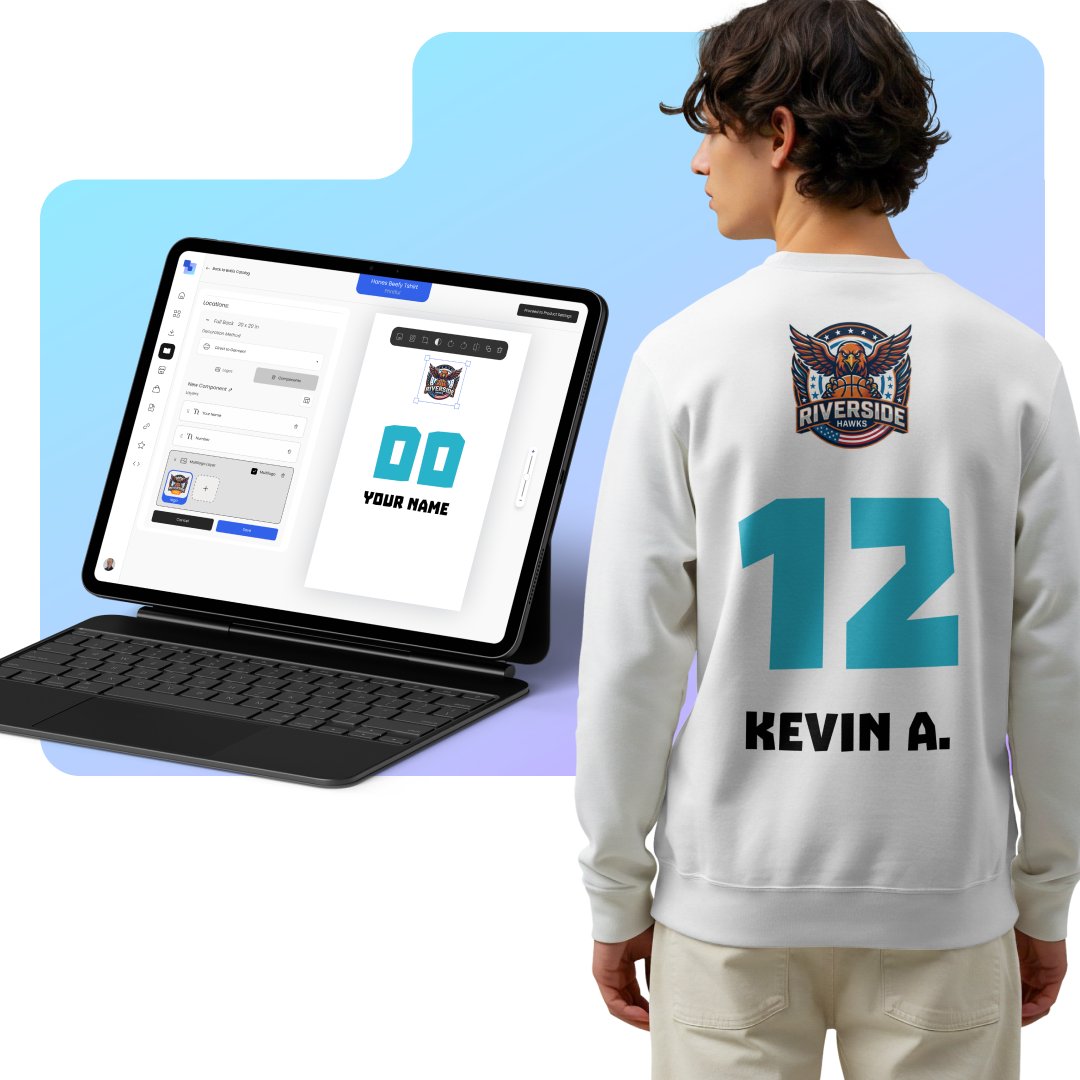
The two words get used interchangeably and they are not the same job. Customization is what you decide once for the whole run — the decoration method, the logo, where it sits, how big it is. Personalization is what changes from one unit to the next. Both are set up in the same place, in the same pass, which is why a personalized run isn’t a separate project.
Personalization is set up inside the Design Tool →From a field you defined to a file the decorator prints
Four steps, and the value is never re-typed by a human at any of them. That is the whole reason this is worth doing.
You mark a layer editable
A text layer in the design studio becomes a field: a label the shopper reads, a character limit set against the print area so a long name can't overrun it, and — if you want — a list of the only values it will accept.
It appears on the product page
The field becomes an option on the storefront, beside size and color, with the design rendered as the shopper fills it in. A free-text field is typed into; a prefilled one is picked from a list.
The order carries the value
What the shopper entered travels with the line item as data — not as a note on an order, not as an email for somebody to transcribe later.
Production gets it per unit
Each unit's artwork is generated from its own value, inside the artboard you already sized. Twenty-four jerseys with twenty-four names are twenty-four files, from one setup.
The roster
A team is a spreadsheet. So paste the spreadsheet.
This is the part that separates B2B personalization from the consumer kind. Nobody running a squad, a department or a school enters twenty-four names one at a time — the list already exists, and it exists in a spreadsheet.
Columns are your editable layers
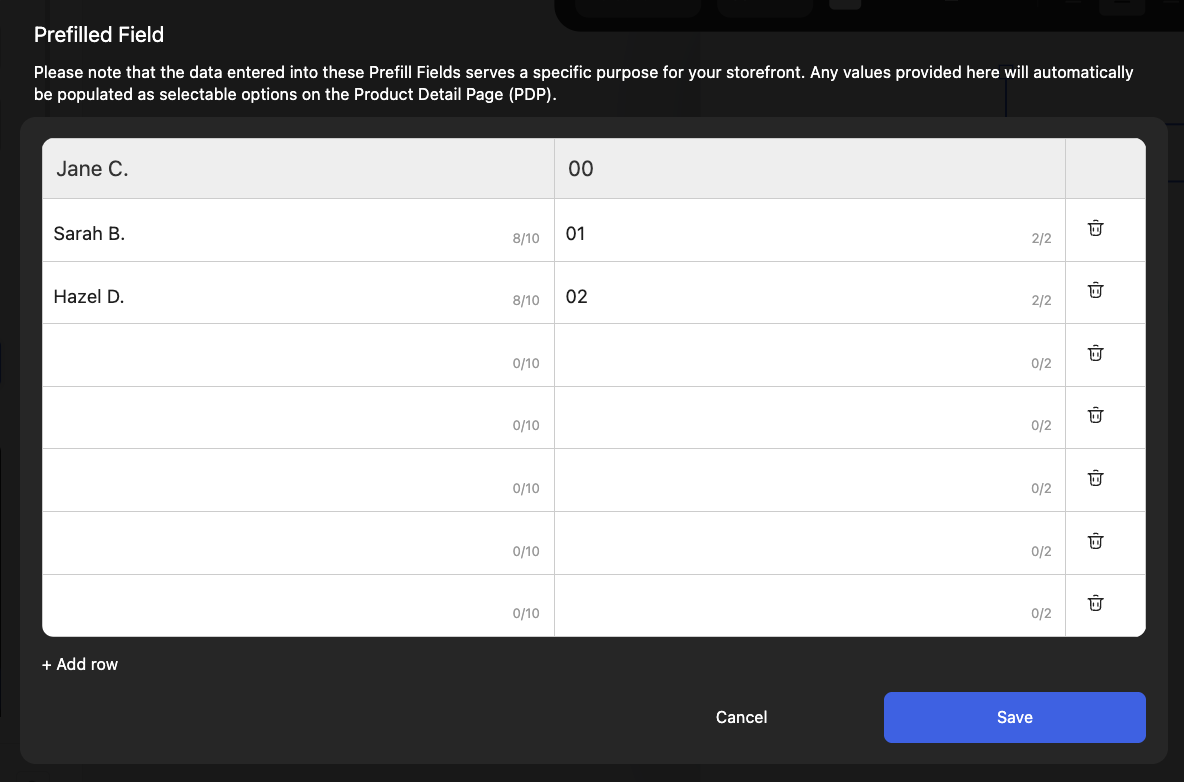
Whatever you marked editable becomes a column — name, number, position. The roster and the design describe the same thing.
Rows are units
One row is one person's item, with their own values, produced from their own generated file.
Paste it straight in
From the spreadsheet the coach, the HR lead or the club secretary already keeps. No template to fill in first.
You decide exactly how much freedom to hand over
The fear with personalization is always the same: that a client’s brand ends up somewhere you didn’t intend. Each of these exists to make that impossible.
Free text, within limits
A name, a nickname, a date. The character limit is set against the print area rather than guessed, so what a shopper types is what will physically fit.
A list to choose from
Give the field prefilled values and the storefront shows them as options. Squad numbers, department names, campus locations — the shopper picks, so nothing arrives misspelled.
A logo the shopper picks
Multilogo puts several approved marks on one layer and lets the customer choose which prints — one product serving a parent brand and its sub-brands without becoming several products.
Everything else stays fixed
Only the layers you marked editable can be touched. Placement, size, decoration method and the rest of the artwork are yours — a personalized item can't drift off-brand.
A canvas, not a template
Every element is a layer you control
The design isn’t a slot with a name dropped into it. It is a composition — text, artwork, curved type, a logo — on an artboard opened at the exact print size, where each layer has real dimensions and only the ones you choose are handed to the shopper.
Where a name on the item is the whole point
None of these are novelty. They are the reason the order exists.
Team and squad kit
Name and number on the back, roster pasted in once, twenty-four different files from one setup.
Staff uniforms
First name on the chest, department on the sleeve, picked from a list so nothing is misspelled.
Onboarding and new hires
A welcome pack that carries the person's name — ordered as they join rather than pre-printed in a box.
Schools and spirit wear
Student names on kit ordered by parents, from a store the school never has to staff.
Events and conferences
Attendee names on merch produced for the event, without pre-guessing who turns up.
Clubs and memberships
A member's name and joining year on the item that marks it — the thing people actually keep.
Every one of these is produced on demand, after it is ordered. A run where each unit is different costs no more in inventory than a run where they are identical, because in both cases there is no inventory — which is the thing personalization used to be impossible without.
What it connects to
Design tool
Where personalization is set up — three steps to brand a whole order, with the studio inside step two.
Design tool→2Business cards
The same machinery on a product where every single unit is different by definition.
Business cards→3Stores
Where shoppers meet the field you defined — a branded storefront on your client's own domain.
Stores→Frequently asked questions
How does personalization work on Brikl?
Do shoppers see what they're getting before they buy?
Can I stop shoppers typing something wrong?
How do I personalize a whole team at once?
Can a shopper choose which logo prints?
Can shoppers change the placement or the colors?
Does personalization work with every decoration method?
Does personalization mean holding inventory?
Put a name on it and produce it once
No credit card, no subscription. 3.5% when you make a sale.